
Project version BOM page reference
The Bill of Materials (BOM) provides a comprehensive inventory of all open-source components, third-party libraries, AI models, and subprojects identified within a specific project version. Black Duck SCA uses the BOM to analyze security vulnerabilities, license compliance risks, and operational risks across your codebase.
To view a project version BOM:
-
Select the project name using the Watching or My Projects dashboard.
-
Select the desired version name.
Header information
The header of the project version page displays the following information:
-
Owner. The user assigned as the owner of this project version.
-
Tier. The tier level assigned to this project.
-
Phase. The current development phase of this project version, such as In Development or Released.
-
Scans. Provides the status of the scans being processed for this BOM. Once the scan completes successfully, an
 status appears. Select the link to view the Scans tab of the
Project Name
Version Name
Settings tab. Use this page to manage the scans for this project
version.
-
Status. Displays the current processing status of the BOM:
-
 . The Black Duck SCA system is
processing events to create or update the BOM.
-
 . The BOM is up-to-date; there are no errors.
-
 . An error has occurred while processing an event or the
Black Duck SCA system is currently not
processing any events and is up-to-date, however an error has
occurred.
For Processing or Error statuses, select the indicator to open the BOM Processing Status dialog box.
The BOM Processing Status dialog box lists each BOM event along with the submitter, submission date and time, start time, elapsed time, and current status. Use this dialog box to identify events that are pending, taking a long time to complete, or have failed.
-
Select > next to a failed event to view its error message.
-
Select the delete icon to dismiss individual errors, or select Dismiss all to clear all errors at once.
The dialog box refreshes the event table automatically every 30 seconds while open. To retrieve an immediate update, close and reopen the dialog box.
Note: Refer to the installation guide for information on configuring the frequency of the BOM event cleanup job (VersionBomEventCleanupJob), which clears BOM events that may become stuck due to processing errors or topology changes.
-
-
Last Updated. The date and time the project version was last updated.
Risk summary bars
At the top of the page are security, license, and operational risk summary bars:
-
The number displayed before the risk severity bars in the risk graphs indicates the number of components (listed in the table and in subprojects) in this BOM that have that type of risk.
-
The color of the bars in the risk graphs and in the table corresponds to the severity of risk that they represent:

-
Critical risk: dark red - 50% black and 50% red (security risk only)
-
High risk: 100% red
-
Medium risk: light red - 50% red
-
Low risk: 100% gray
-
None: light gray - 50% gray
-
To filter the table by risk category and severity:
-
Select a severity label/graph to filter the table to show only those components and subprojects that have a specific type and severity of risk.
Unconfirmed snippets and unmatched components
If there are any unconfirmed snippets, you will see them displayed on the right side of the Risk graphs. Clicking this link will take you to Source view in order to take action on these items.
Infrastructure as Code
Infrastructure as Code (IaC) is the management and provisioning of infrastructure (networks, virtual machines, load balancers, and connection topology) through code or configuration files instead of through manual processes.
If your scan included Infrastructure as Code, you will see the current amount of Open issues displayed on the right side of the Risk graphs. You can then expand the IaC link to view the Total amount of IaC issues and Dismissed issues.

You can then take action on the Infrastructure as Code issues discovered in your BOM by clicking either the Open link or the amount to the left of the Open link. This will open a dialogue box displaying all the IaC issues.
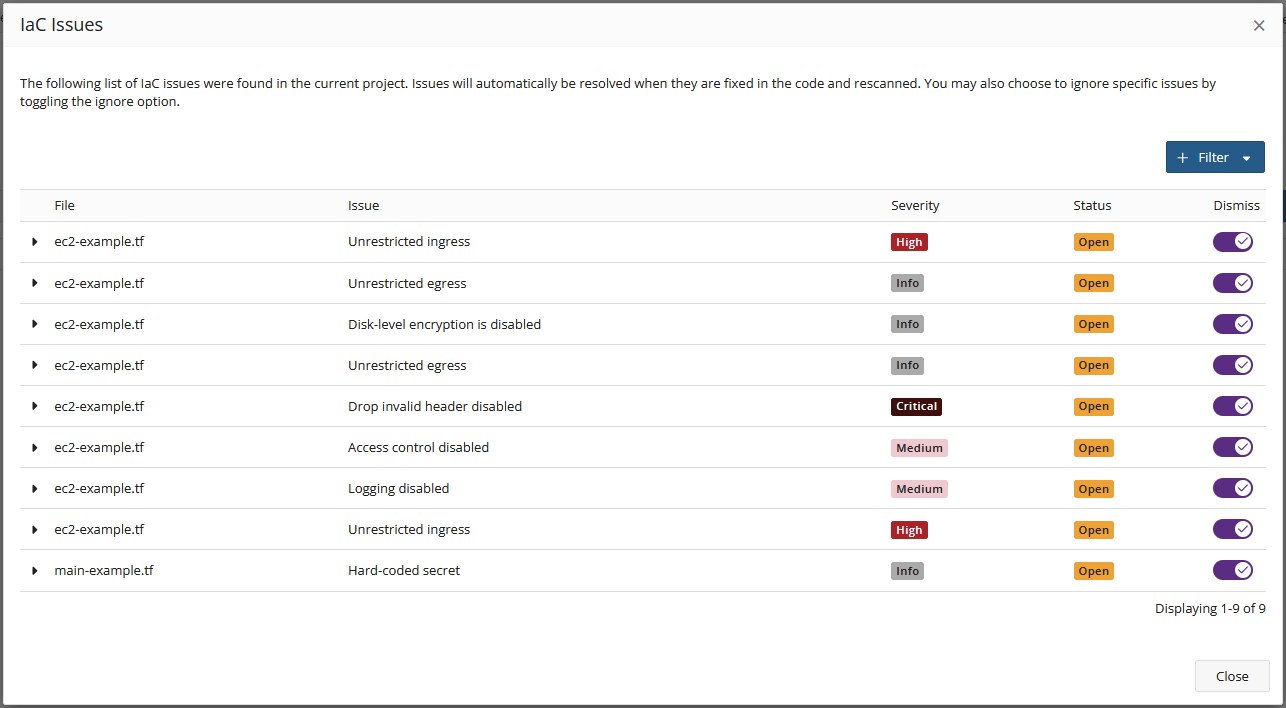
From here, you can:
-
Expand a row to see specific details of the nature of the issue. This information includes a description of the issue, the severity, the suggested remediation, and the code location of the issue.
-
Dismiss an issue. By toggling the slider in the Dismiss column, you can mark an issue as dismissed. This means that you have either remediated the issue or have chosen to ignore it.
-
Filter the list. Click the Filter button to add filters to the list. Options include Issue, Severity, and Status.
For more information regarding Infrastructure as Code scanning, please refer to the Sigma User Guide.
Bill of materials table
The Bill of Materials (BOM) table contains information about the components and subprojects in this version of the project.
In the Bill of Materials view, select the options icon located in the far-right column of a row to modify, ignore, or (for manually added components) delete components or subprojects from the BOM.
When you edit a component — using either the BOM or the Source tab — an  icon appears in the table row to indicate that a manual adjustment was made
to that component. Select the icon to open the Component Details dialog box, which displays the edits
made to the component.
The BOM table includes the following columns. Select a column name below for detailed information about columns that require further explanation.
| Column | Description |
|---|---|
| First column | Displays status icons to the left of the component or subproject name, indicating policy violations and review status. |
| Component | Lists the names and versions of all components, AI models, and subprojects identified in the project version. Select an entry to open the slide-out panel or navigate to the full details page. See Component column for more information. |
| Source | Displays the number of matching files or archives for components, or the number of components for subprojects. Select the value to navigate to the relevant view. |
| Match Type | Indicates how the component was matched to a version in the Black Duck KnowledgeBase. See Match Type column for more information. |
| Match Score | Indicates the confidence level that the matched component is the correct component and version. See Match Score column for more information. |
| Usage | Indicates how the component is intended to be included in the project when this version is released. See Usage column for more information. |
| License | Displays the declared license of the component or subproject and its associated license risk level. |
| Vulnerabilities | Displays the number of critical/high, medium, and low risk vulnerabilities associated with the component or subproject. |
| Cryptography | Indicates that this component version contains encryption algorithms. |
| Operational Risk | Displays the operational risk level — High, Medium, or Low — for the component or subproject. See Operational Risk column for more information. |
First column
The first column displays icons to the left of the component or subproject name to indicate its status:
-
 Policy violation has been overridden.
-
 Component or subproject has not been reviewed.
-
 Component or subproject has been reviewed.

Component column
The Component column lists the names and versions of all open source and third-party components and AI models identified in the selected project version, as well as any subprojects that have been added as components. Each entry represents a specific component version or subproject and serves as a link to more detailed information, including license, security, and usage data. Components shown include both top-level (parent) and subcomponents (children).
AI models are marked with a distinctive icon at the beginning of the row, preceding the model name.
-
Selecting a component opens a slide-out panel for quick review, or allows navigation to the full component details page.
-
Select the version number to open the Black Duck KnowledgeBase component version page, which displays a list of the projects and project versions in which this version of the component is used.
-
Select ?, which indicates an unknown version, to open the KnowledgeBase component page, which provides general information about the component.
-
Hover over the component to view its origin and origin ID. If the component version has multiple origin IDs, they are listed in the popup.
Note: If a component has more than one origin for a version, the table displays the highest risk values.
If the component version's origin is not specified, the popup will notify you that the license risks for this component are estimated and that you should manually specify a version for a more accurate result. If the component's version cannot be identified, the popup will indicate as such.
Source column
For components: Number of archives or files that match. For example: 
For automatic matches, the number of files that were identified in the component scan and matched to this version of the component appears. Select the text to open the Source tab.
For subprojects: Number of components in the subproject. For example: 
Select the value to open the BOM for this project version. The BOM only appears if you have permission to view the project.
Match Type column
Indicates how the match between the component in use in this version of your project and a specific version of a component in the Black Duck KnowledgeBase was made.
| Match Type | Description |
|---|---|
| Binary | Binary match from Black Duck Binary Analysis. |
| Direct Dependency | Direct dependency identified via package manager scanning. |
| Direct Dependency Binary | Direct dependency identified from Black Duck Binary Analysis. |
| Exact Directory | Exact directory match from Signature scanning or Binary Analysis. |
| Exact File | Exact file match from Signature scanning or Binary Analysis. |
| File Dependency | Deprecated and no longer used. |
| Files Added/Deleted | A fuzzy signature match to a directory where some of the OSS component's files were added, deleted, or modified in the scanned archive. This may be a match to a previous or subsequent version of the component. |
| Files Modified | A fuzzy signature match to a directory where some of the archive files were modified. This may be a match to a previous or subsequent version of the component. |
| Manually Added | Component manually added to the BOM in Black Duck SCA. |
| Manually Identified | Manually identified BOM component related to signature match files. |
| Manually Identified Package | Manually identified BOM component related to an identified package manager package. |
| Partial | Deprecated and no longer used. |
| Snippet | Snippet scanning identified a portion of code in your file that matches code in one or more KnowledgeBase files. |
| SBOM | Imported from an SBOM. |
| Transitive Dependency | Transitive dependency identified via package manager scanning. |
| Transitive Dependency Binary | Transitive dependency identified from Black Duck Binary Analysis. |
When viewing components across the various views, precedence of Direct Dependency over Transitive Dependency is applied. If the source hierarchy has a component as both a direct and transitive dependency, the Match Type field will always show that component as a Direct Dependency, even when viewing the transitive dependency in the Source Tree.
The following match types apply to automatic matches from an imported Protex BOM: Exact, Partial, and File Dependency.
The match type for subprojects is Manually Added.
Match Score column
Indicates the level of confidence that a particular matched component is in fact the component and version displayed.
The overall match score is calculated based on two factors:
-
Degree of ambiguity. The number of possible matches for this component, including the one selected in Black Duck SCA.
-
Percentage of KnowledgeBase artifact matched. The percentage of a KnowledgeBase download from the BOM entry's data that matched the scanned data. This is based on the download with the highest percentage match to the scanned files.
The match score value does not change after a BOM component resulting from a signature scan is edited or modified.
Note: Manually added components and components imported from SBOMs will always display 100% match confidence.
Important: When SCASS is enabled in Black Duck SCA, match scores are returned for package manager scans.
The match score appears in one of two colors:
-
Yellow, if the score is within the warning threshold.
-
Gray, otherwise.
Selecting a match score displays a popover that reveals additional details, including the values described above.
Usage column
For components, indicates how the component is intended to be included in the project when this version is released. For example, if scanning identified development tools in scanned code or a Docker image, you can indicate in the BOM that they will not be included in the released version of the project.
Tip: To remove components from the project version's risk calculations because they will not be released with the project, exclude them from the BOM.
| Usage Value | Description |
|---|---|
| Dynamically Linked | A moderately integrated component that is dynamically linked in, such as with DLLs or .jar files. This is the default value. |
| Statically Linked | A tightly integrated component that is statically linked in and distributed with your project. |
| Source Code | Source code such as .java or .cpp files. Typically used when packaging a component's sources with the build, a binary, or distribution. |
| Separate Work | Intended for loosely integrated components where your work is not derived from the component. Your application has its own executables with no linking between the component and your application. |
| Merely Aggregated | Intended for components that your project does not use or depend upon in any way, although they may be on the same media. |
| Implementation of Standard | Intended for cases where you implemented according to a standard, such as a Java spec request that ships with your project. |
| Prerequisite | Intended for components that are required but not provided by your distribution. |
| Dev. Tool / Excluded | Component will not be included in the released project, such as components used for building, development, or testing. |
| Unspecified | The usage for this component has not yet been determined and requires further investigation. |
For subprojects, usage defaults to Dynamically Linked.
License column
Displays the declared license of the component or subproject in use in this version of your project. A colored icon indicates the license risk level:
-
High license risk.
-
Medium license risk.
-
Low license risk.
-
No license risk.
For known licenses, select the license name to view license details and license text.
If the license text indicates that there is more than one license for a component version — for example, "Apache 2.0 and 3 more..." — hover over the license name to view the names of all licenses.
Vulnerabilities column
Displays the number of critical/high (fully red), medium (partially red), and low (gray) risk vulnerabilities associated with this version of the component or subproject.
Select a value to open the project version Vulnerabilities tab, which displays the vulnerabilities for that component or subproject. If the component has an unknown version, a modal will appear detailing the estimated security risk for the component.
For subprojects, the value shown is the total number of vulnerabilities for all components. Note that these values may not match the values shown on the subproject version's BOM page, which lists the number of components with a vulnerability.
Note: If you do not have permission to view the project, you will not be able to access this page.
Note: Risk counts do not include items that are in match review.
Cryptography column
Indicates that this component version has encryption algorithms.
Operational Risk column
Displays the operational risk level — High, Medium, or Low — for the component or subproject in use in this version of your project.
The operational risk level is calculated using a combination of the following factors:
-
Version status. Based on the version of the component used compared to the number of newer versions released and the time since the newest version was released. Using older versions when newer versions are available is considered risky.
-
Activity status. Based on the commit activity trend for the component over the last 12 months. Increasing or stable commit activity is considered less risky than decreasing commit activity.
The final operational risk value is the higher of these two calculations.
For components, hover over the value to view the factors that determined the risk level shown.
For subprojects, hover over the value to see the number of components in this project version at each operational risk level. Note that these values may not match the values shown on the subproject version's BOM page. As a subproject, the value shown is the total number of components that have an operational risk. As listed on the BOM page, the operational risk values are for top-level components.
Component slide-out panel
When you select a component, subproject, or AI model from the Components column, a slide-out panel opens from the right side of the page. This panel provides a quick summary of important information without navigating away from the Bill of Materials view.
The slide-out panel for component and subproject includes:
-
Vulnerabilities: The number of known security vulnerabilities associated with the component.
-
License: The license associated to the component version.
-
Upgrade Recommendation: Suggested versions, if any, to remediate known vulnerabilties or policy violations. Short-term typically reflects upgrading a component's minor or patch version. Long-term will focus on upgrading a component's major version.
-
Source: The origin of the component.
-
Fields: Values such as CPE, PURL, and any populated custom fields.
-
More Details: Additional information such as component links, description, tags, and approval status.
The slide-out panel for AI models includes:
-
Source: The origin of the AI model.
-
More Details: Additional information such as model description, tags, and approval status.
Clicking the link at the top of the slide-out panel opens the corresponding page for the component, component version, subproject, or AI model depending on the type of item selected.
Understanding direct and transitive dependencies
When analyzing your project's bill of materials (BOM), it's important to understand the difference between direct and transitive dependencies:
-
Direct dependency: A component that your project explicitly declares and includes in its code or configuration files. These are dependencies you directly add to your project.
For example, if your project's configuration file includes
library-A, thenlibrary-Ais a direct dependency. -
Transitive dependency: A component that is not directly declared by your project, but is required by one of your direct dependencies. These are automatically included through the dependency chain.
For example, if
library-A(your direct dependency) includeslibrary-B, thenlibrary-Bis a transitive dependency in your project.
Understanding this distinction helps you make informed decisions about risk, remediation, and license compliance when managing open source components in your project.