
Configuring Secure LDAP
To connect Black Duck SCA to a secure LDAP server, you must establish a trust connection by importing the LDAP server certificate into the Black Duck SCA LDAP truststore. This is most commonly required when using a self-signed certificate.
AUTH_CUSTOM_CA, HUB_PROXY_CERT_FILE, or the
certAuthCACertSecretName Helm secret, those certificates are
imported into the proxy truststore only. They are not automatically imported into
the LDAP truststore. To establish a trust connection for your LDAP or LDAPS server, you
must import the server certificate separately using the Black Duck SCA
UI, as described below.Obtaining your LDAP information
Contact your LDAP administrator and gather the following information before proceeding.
LDAP Server Details
This is the information that Black Duck SCA uses to connect to the directory server.
-
(required) The host name or IP address of the directory server, including the protocol scheme and port, on which the instance is listening.
Example:
ldaps://<server_name>.<domain_name>.com:636 -
(optional) If your organization does not use anonymous authentication and requires credentials for LDAP access, the password and either the LDAP name or the absolute LDAP distinguished name (DN) of a user that has permission to read the directory server.
Example of an absolute LDAP DN:
uid=ldapmanager,ou=employees,dc=company,dc=comExample of an LDAP name:
jdoe -
(optional) If credentials are required for LDAP access, the authentication type to use: simple or digest-MD5.
LDAP User Attributes
This is the information that Black Duck SCA uses to locate users in the directory server.
- (required) The absolute base DN under which users can be located.
Example:
dc=example,dc=com - (required) The attribute used to match a specific, unique user. The value of
this attribute personalizes the user profile icon with the name of the user.
Example:
uid={0}
Test Username and Password
- (required) The user credentials to test the connection to the directory server.
Importing the server certificate
To import the server certificate:
-
Log in to Black Duck SCA as a system administrator.
-
Click
 .
-
Select Integrations → External Authentication.
-
Click Lightweight Directory Access Protocol (LDAP).
-
Check the Enable LDAP Configuration checkbox and complete the information in the LDAP Server Details section, as described above. In the Server URL field, ensure that the protocol scheme is
ldaps://. -
Complete the information in the LDAP User Attributes section, as described above.
Optionally, clear the Create user accounts automatically in Black Duck SCA check box to turn off the automatic creation of users when they authenticate with LDAP. This check box is selected by default so that users who do not exist in Black Duck SCA are created automatically when they log in using LDAP. This applies to new installs and upgrades.
-
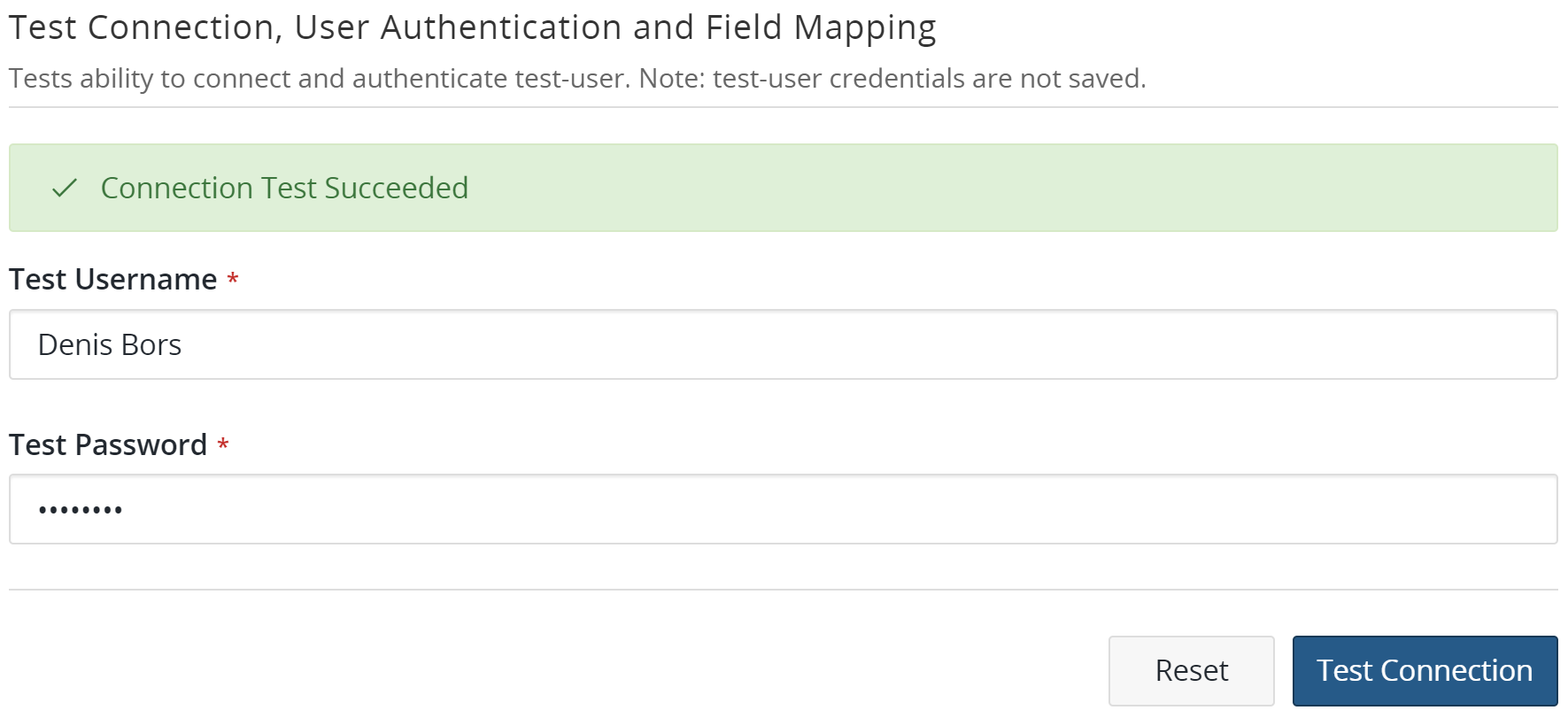
Enter the user credentials in the Test Connection, User Authentication and Field Mapping section and click Test Connection.
-
If there are no issues with the certificate, it is automatically imported and the "Connection Test Succeeded" message appears:
-
If there is an issue with the certificate, a dialog box listing details about the certificate will appear. Do one of the following:
-
Click Cancel to fix the certificate issues. Once fixed, retest the connection to verify that the issues have been resolved and the certificate has been imported. If successful, the "Connection Test Succeeded" message appears.
-
Click Save to import the certificate as-is. Verify that the certificate has been imported by clicking Test Connection. If successful, the "Connection Test Succeeded" message appears.
-