
About the Watching and My Projects dashboards
Use the Watching or My Projects dashboards to view risk and policy violation information at the project level.
The following information is shown for each project:

- To view policy violation information for a specific project:
Use the bar to view the number of project versions with the highest policy severity level.
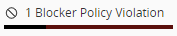 Note: The text states the number of project versions with this highest policy severity level, not all policy severity levels affecting this project.
Hover over the bar to see the number of project versions with their highest severity level of policy violations:
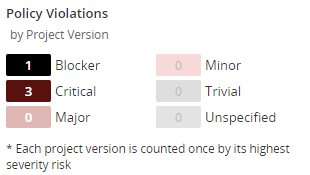
In the above example, there are four project versions which have policy violations; one version has a policy violation which has Blocker as the highest severity level, the other three versions have Critical as the highest severity level. Note that this does not indicate the number of policy violations in these versions, just the highest severity level for each version.
- To view risk information:
Use the risk bar to view the number of project versions with the highest risk level:
Security risk:

License risk:

Operational risk:
 Note: The text states the number of project versions with this highest risk level, not all risk levels affecting the versions.
Hover over a risk bar to see the number of versions of this project with their highest level of risk.
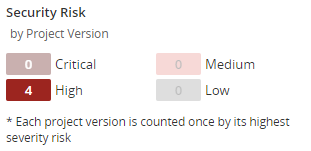
If a project version has risk, the version is only counted once and only its highest risk level is shown.
- Use the graphs to see overview information for all projects in this dashboard.
The risk graph shows the percentage of projects in this dashboard that have policy violations by severity level. You can also hover over an area in the graph to view this information:
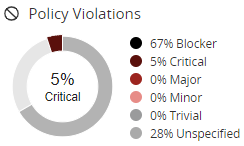
The risk graphs show the percentage of projects in this dashboard that have this level of security, license, or operational risk. You can also hover over an area in the graph to view this information:
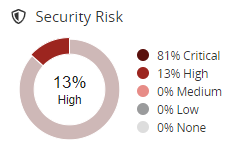
Hover over a value in the legend to highlight the value in the graph.
- View additional information for each project, including:
Number of versions.
Last scan date.
Date when this project was last updated, such as when a scan that was mapped to any project version was last run or when the BOM for any project version was last updated, either manually or by a new scan.
-
Select a project name to view the Project Name page which lists all versions of this project.
- Manage how the projects are shown in these dashboards:
Use the Sort by field to select an attribute to sort by and click an arrow to select the sort order
 (ascending) or
  (descending).
Use the Filter projects field to filter the projects shown in either dashboard.
-
Use the icons
 to manage
your watched projects or delete a project.
to manage
your watched projects or delete a project.